

tutorials4all
Reputable
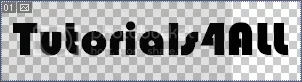
Create a new document of any size, i used 300x80 and type your text. I used 'Bauhaus 93' font of size 46px but you can use any.
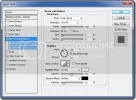
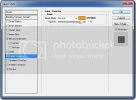
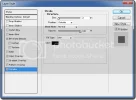
Now go to Blending Mode of the text layer (Right Click on text layer >> Choose Blending Mode) and use the following settings:
Now right click on your text layer and click "Rasterize".

Now select the eraser tool, select the mode brush and choose the suitable size of brush for your text.
Now slowly erase parts of your text.
Tip: More times you go over an area the faster it erases.
After doing everything correctly, your text will look something like this.

Help us to bring more tutorials for you by joining our tutorial forum where you can find more great tutorials. Click Tutorials4All!
Now go to Blending Mode of the text layer (Right Click on text layer >> Choose Blending Mode) and use the following settings:
Now right click on your text layer and click "Rasterize".
Now select the eraser tool, select the mode brush and choose the suitable size of brush for your text.
Now slowly erase parts of your text.
Tip: More times you go over an area the faster it erases.
After doing everything correctly, your text will look something like this.
Help us to bring more tutorials for you by joining our tutorial forum where you can find more great tutorials. Click Tutorials4All!


