So today a third member private messaged me asking about the starburst effect that I use in many of my graphics and have used in multiple versions of ForumBuff's spoiler page. It's a really simple, cool effect that I love using in all my graphics. I also used it in the opening graphic for the FP Awards ceremony.

In this tutorial, we will simulate the starburst effect in the above image.
Create a new 400 x 400 image with a transparent background.
Fill the image with a background layer by press shift + delete. Double click on your new background layer to open your blending options control panel. Select 'Gradient Overlay' and set the options to as follows...
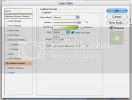

Before we proceed to the next step, you'll need to follow me in some extraordinarily simple math. This is an important step in creating the effect because precision is of the utmost importance if you wish your starburst to look acceptable. If the lines with which you will form your starburst effect are not equally distributed across your image (you'll see what I mean in a minute), your starburst will turn out kinda funky. What you need to do is find an even factor of the width of your image. (You'll see why when we start our next step.) The width of our image is 400. 20 is the even factor we will work with.
Divide your even factor by two. Create a new image with this number as your width and with the same height as your original image. (I know this is kind of confusing. Work with me.) Our new image will be 10 x 400.
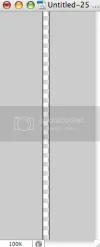
You'll now need to fill this image with white. Do so by pressing shift + delete, selecting 'White,' and clicking 'OK.'
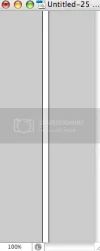
Now you'll need to drag this new image into your original image. Do so by selecting the move tool and dragging the white layer from your new image to your original image.
Make sure your white line is aligned all the way to the left of your original image.

What you need to do now is duplicate your line layer twenty times and distribute each line layer ten pixels from each other. This sounds kinda complicated and time consuming, but it really isn't. Follow my instructions to the letter.
Firstly, create a duplicate of your white line layer by right clicking it and selecting 'Duplicate Layer.' Using the move tool, drag this duplicate layer to the edge of your original white line layer.

You'll know it is at the very edge of your original white line layer if you tap your keyboard's right arrow key once and see green separating the two white line layers.

You'll need to tap the arrow ten times so you can be sure your new white line layer is exactly ten pixels from your original white line layer.

Now that exactly ten pixels are separating these two layers, merge them. Do this by right clicking your white line layer copy (which should be above your original white line layer) and selecting 'Merge Down.'

Even if your two layers don't visibly merge (mine haven't), your original white line layer should now contain both lines. You can see that I have deleted my white line layer copy, but both lines still exist in my image.

You can now repeat the process you just completed so that your number of white lines will increase exponentially across your image.
I duplicate the layer, align it to the right, move it over ten pixels, and merge down.

I duplicate the layer, align it to the right, move it over ten pixels, and merge down.

Eventually, you'll get to a stage where the vast majority of your image is taken up by white lines. It is at this stage that you should stop completing the process explained above.

You don't want to make more lines than are needed to fill up your image. The result of overproducing white lines is gruesome. This is where you'll have to employ some powers of guestimation. To me, it looks as if I need four more lines to complete my image. (I don't want a line aligned all the way to the right of my image. I'll stress this later because I'm sure many of you are skimming this.) In order to create these additional lines, I have selected four existing lines. Press control + c to copy them and control + v to paste them in a new layer. As you have done multiple times now, align these new lines to the right edge of the existing lines and move them over ten pixels.

I guestimated correctly. My image is filled perfectly with white lines.

You'll notice that there is no line aligned to the very right of the image. Never place a line to the very right of the image. As with every other seemingly pointless instruction in this tutorial, if not followed precisely, your starburst will look messy. I don't like messy.
Merge however many white line layers you have. (You should only have two, but if you have more than two, simply merge each of them with the layer below it.)
Now that you have your array of white lines set up, creating the actual starburst effect is extraordinarily simple. With your white lines layer selected, click Filter >> Distort >> Polar Coordinates.

You shouldn't have to change any settings. Simply click 'OK' and you'll see your white lines transform into the beautiful beginnings of your starburst effect.

Now all there's left to do is styling. Obviously styling anything is subjective, but I'll guide you through what I normally do with starbursts. Double click your starburst layer to open its blending options control panel. Here are my settings.
Firstly, I set the layer opacity to 20%. With lighter background colors, you'll want to set the opacity lower. With darker background colors, you'll want to set the opacity higher.

And finally, I added a radical gradient.


And there you have it! A beautiful starburst effect for your next design project. 😀
In this tutorial, we will simulate the starburst effect in the above image.
Create a new 400 x 400 image with a transparent background.
Fill the image with a background layer by press shift + delete. Double click on your new background layer to open your blending options control panel. Select 'Gradient Overlay' and set the options to as follows...
Before we proceed to the next step, you'll need to follow me in some extraordinarily simple math. This is an important step in creating the effect because precision is of the utmost importance if you wish your starburst to look acceptable. If the lines with which you will form your starburst effect are not equally distributed across your image (you'll see what I mean in a minute), your starburst will turn out kinda funky. What you need to do is find an even factor of the width of your image. (You'll see why when we start our next step.) The width of our image is 400. 20 is the even factor we will work with.
Divide your even factor by two. Create a new image with this number as your width and with the same height as your original image. (I know this is kind of confusing. Work with me.) Our new image will be 10 x 400.
You'll now need to fill this image with white. Do so by pressing shift + delete, selecting 'White,' and clicking 'OK.'
Now you'll need to drag this new image into your original image. Do so by selecting the move tool and dragging the white layer from your new image to your original image.
Make sure your white line is aligned all the way to the left of your original image.
What you need to do now is duplicate your line layer twenty times and distribute each line layer ten pixels from each other. This sounds kinda complicated and time consuming, but it really isn't. Follow my instructions to the letter.
Firstly, create a duplicate of your white line layer by right clicking it and selecting 'Duplicate Layer.' Using the move tool, drag this duplicate layer to the edge of your original white line layer.
You'll know it is at the very edge of your original white line layer if you tap your keyboard's right arrow key once and see green separating the two white line layers.
You'll need to tap the arrow ten times so you can be sure your new white line layer is exactly ten pixels from your original white line layer.
Now that exactly ten pixels are separating these two layers, merge them. Do this by right clicking your white line layer copy (which should be above your original white line layer) and selecting 'Merge Down.'
Even if your two layers don't visibly merge (mine haven't), your original white line layer should now contain both lines. You can see that I have deleted my white line layer copy, but both lines still exist in my image.
You can now repeat the process you just completed so that your number of white lines will increase exponentially across your image.
I duplicate the layer, align it to the right, move it over ten pixels, and merge down.
I duplicate the layer, align it to the right, move it over ten pixels, and merge down.
Eventually, you'll get to a stage where the vast majority of your image is taken up by white lines. It is at this stage that you should stop completing the process explained above.
You don't want to make more lines than are needed to fill up your image. The result of overproducing white lines is gruesome. This is where you'll have to employ some powers of guestimation. To me, it looks as if I need four more lines to complete my image. (I don't want a line aligned all the way to the right of my image. I'll stress this later because I'm sure many of you are skimming this.) In order to create these additional lines, I have selected four existing lines. Press control + c to copy them and control + v to paste them in a new layer. As you have done multiple times now, align these new lines to the right edge of the existing lines and move them over ten pixels.
I guestimated correctly. My image is filled perfectly with white lines.
You'll notice that there is no line aligned to the very right of the image. Never place a line to the very right of the image. As with every other seemingly pointless instruction in this tutorial, if not followed precisely, your starburst will look messy. I don't like messy.
Merge however many white line layers you have. (You should only have two, but if you have more than two, simply merge each of them with the layer below it.)
Now that you have your array of white lines set up, creating the actual starburst effect is extraordinarily simple. With your white lines layer selected, click Filter >> Distort >> Polar Coordinates.
You shouldn't have to change any settings. Simply click 'OK' and you'll see your white lines transform into the beautiful beginnings of your starburst effect.
Now all there's left to do is styling. Obviously styling anything is subjective, but I'll guide you through what I normally do with starbursts. Double click your starburst layer to open its blending options control panel. Here are my settings.
Firstly, I set the layer opacity to 20%. With lighter background colors, you'll want to set the opacity lower. With darker background colors, you'll want to set the opacity higher.
And finally, I added a radical gradient.
And there you have it! A beautiful starburst effect for your next design project. 😀