ForuMotion Tutorials

Rok

Seasoned Veteran
Joined
Apr 8, 2009
Messages
4,121
Reaction score
0
FP$
6
How to manage avatar sizes

Access your Administration Panel >

Click on the Display tab >

Avatars -- Avatars Gallery (found directly on the sidebar) >

Click the Personal Avatars tab, and once you are on the section, you can manage your avatar pixels and size management beside Maximum Avatar File Size :. Once you completed your process, be sure to Save the settings afterwards


Tutorial created by Rok

Wanna share or quote this tutorial? Here's the code :
Code:
[center][size=18][b]How to manage avatar sizes[/b][/size]
[size=7]This is a very short tutorial displaying how to manage avatar sizes.[/size]

Access your Administration Panel >

Click on the [i]Display[/i] tab >

Avatars -- Avatars Gallery (found directly on the sidebar) >

Click the Personal Avatars tab, and once you are on the section, you can manage your avatar pixels and size management beside [b]Maximum Avatar File Size :[/b]. Once you completed your process, be sure to [i]Save[/i] the settings afterwards 


Tutorial created by [color=blue]Rok[/color][/center]


 
How To Add Ranks

Once you have a set of rank images.. :

• Administration Panel >
• Users & Groups tab >
• Ranks -- Ranks Administration >
AddNewRank.webp >
• On this page, you have to fill out the following selected tables (I'm going to use Administrator as an example) :
Rank Title : Administrator

Set as Special Rank : No
If you are wanting someone to achieve a selected amout of posts in order to achieve the rank, then Set as Special Rank : Yes.

Minimum Posts : (Amount of posts you want a user to achieve in order to achieve the rank; you can't answer this choice if you selected Yes in Set as Special Rank :)
Rank Image URL (http://URL_RANK_IMAGE.gif) : (Enter the rank image's image code from requesting them or searching them on this forum)
• Finally, Save the settings afterwards.

You can manage what users have the rank by managing it in their profile via the Administration Panel.

Written by Rok


Code:
[size=20]How To Add Ranks[/size]

After you achieve your selected rank images from [url=http://help.forumotion.com/graphic-requests-f31/]requesting them[/url] or [url=http://help.forumotion.com/self-service-proposal-f8/]searching them[/url] on the forum.. :

• Administration Panel >
• Users & Groups tab >
• Ranks -- Ranks Administration >
• [ATTACH=full]13752[/ATTACH] >
• On this page, you have to fill out the following selected tables (I'm going to use [i]Administrator[/i] as an example) :
[b]Rank Title :[/b] [i]Administrator[/i] 

[b]Set as Special Rank :[/b] [i]No[/i] 
[i]If you are wanting someone to achieve a selected amout of posts in order to achieve the rank, then [b]Set as Special Rank :[/b] Yes.[/i]

[b]Minimum Posts :[/b] (Amount of posts you want a user to achieve in order to achieve the rank; you can't answer this choice if you selected [i]Yes[/i] in [b]Set as Special Rank :[/b])
[b]Rank Image URL (http://URL_RANK_IMAGE.gif) :[/b] (Enter the rank image's image code from [url=http://help.forumotion.com/graphic-requests-f31/]requesting them[/url] or [url=http://help.forumotion.com/self-service-proposal-f8/]searching them[/url] on this forum)
• Finally, [i]Save[/i] the settings afterwards.

You can manage what users have the rank by managing it in their profile via the Administration Panel.

[color=blue]Written by Rok[/color]
 
Enabling HTML

In order to have HTML applications (such as flash games, images, and other sources) in users' posts, you'll have to activate HTML in both the Administration Panel and the user's profile :


Enabling HTML via Administration Panel

Administration Panel >

General tab >

Forum -- Messages and Emails >

While in the Messages section on this page, scroll down a wee bit to where the statement Allow HTML : is keyed, and select Yes next to it.
Be sure that you Save the settings afterwards.

Enabling HTML via Profile

Profile tab (found on Navigation Bar); or My Profile (found on the Log-In widget) >

Preferences tab >

From that page, scroll down a bit to where Always allow HTML : is keyed on the page, and select Yes next to it.
Be sure that you Save the settings afterwards.

Also, there is a high recommendation for you to have an Announcement in your forum discussing how users can enable HTML.


Written by Rok
 
Have Any HTML Widget On Navigation Bar

Have you ever seen someone have a custom navigation on their Navigation Bar? Well, you can also do the same thing. Is your playlist or custom widget covering your whole forum? Well, you can have your playlist (or any other custom widget) attached on the Navigation Bar.

To create your own custom navigation button on your Navigation Bar, you first need a source for the button to lead to. That source can be created customly by making an HTML page. Let's basically work on how to create an HTML page before anything else right now. To create an HTML page :

Firstly, navigate to your Admin Panel >

Click on the Modules tab >

HTML -- HTML Pages Management (found on sidebar) >

Now, on the HTML Pages Management page, click on the HTMLPAGEBUTTON.webp button. On the next page, set the tables as the following (I'll use the chatbox as an example on how to do this) :
Title * : Playlist
Do you wish to use your forum page header and page footer ? No
Use this page as homepage ? No
Html source * : (Paste the code of the playlist into the description)

Save the settings.


Now, you have created your own HTML Page (holding the custom widget) to set on your Navigation Bar. All you need to do now is set the HTML Page as an attachment on your Navigation Bar. To do this, you first need to retrieve the link for your HTML page you just created. To get the code, accomplish the following :

Navigate back to the HTML Page Management >

Scroll down a tad bit into the HTML Pages section on that page, and then find your HTML Page that you just created, and copy the link of it.

Now that you have the link for the page, you can set the HTML as an attachment on the Navigation Bar. To do this, accomplish the following :

Admin Panel >

Display tab >

Homepage -- Headers & Navigation >

Scroll down to the Nav links section, and then click on the ADDACU.webp button. >

On the next page, set the tables as the following (used examples) :

Menu : (Widget Title)
Picture : (You can request a Navigation Bar image ~that has the name of the widget on it~ from the creator of the Navigation Bar)
Text : (If you are using an image, then you don't need the text)
Redirection Link : (Paste the HTML Page link into this table)
Rights : (Check any group that is able to access this on the Navigation bar)
Rights : (You can choose if the navigation, if clicked, will open in a new window)

Save the settings.

Now, you have yourself your custom HTML Navigation Link.

Hope this helped out any situations, and will continue to help on in the past.


Written by Rok
 
Drop-Down List

Drop-down lists are used for users to pick a few optional selections of where to navigate to a site. They can be used for purchasing payments, forum redirections, different sites, etc.

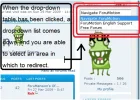
Here is a screenshot of a drop-down list :

drop-d10.webp

--------------------------------------------------------------------------------

drop-d11.webp

The code for a drop-down list is :
Code:
<div id="EchoTopic">
<form name="jump2">
<select name="menu" onchange="location=document.jump2.menu.options[document.jump2.menu.selectedIndex].value;" value="GO">
<option value="">TITLE OF DROP-DOWN LIST HERE</option>
<option value="LINK HERE">SELECTION TITLE HERE</option>

</select>
</form>
</div>

The code will format just like the drop-down list in my examples above.


Written by Rok and supported by Placehold.​
 
Text Scrollings


Code
Code:
[scroll]text[/scroll]
Outcome [scroll]text[/scroll]

Code
Code:
[updown]text[/updown]
Outcome [updown]text[/updown]

Code
Code:
[updown][scroll]text[/scroll][/updown]
Outcome [updown][scroll]text[/scroll][/updown]

Code:
<MARQUEE BEHAVIOR=ALTERNATE>Bouncing Horizontal Code</MARQUEE>
- XtremeX17
Outcome: <MARQUEE BEHAVIOR=ALTERNATE>Bouncing Horizontal Code</MARQUEE>

Code:
<marquee style="z-index:2;position:absolute;left:14;top:57;font-family:Arial;font-size:10pt;color:ffffff;height:106;"scrollamount="4" direction="down">TEXT HERE</marquee><marquee style="z-index:2;position:absolute;left:237;top:99;font-family:Arial;font-size:10pt;color:ffffff;height:287;"scrollamount="6" direction="down">TEXT HERE!</marquee><marquee style="z-index:2;position:absolute;left:65;top:8;font-family:Arial;font-size:10pt;color:ffffff;height:482;"scrollamount="2" direction="down">TEXT HERE!</marquee><marquee style="z-index:2;position:absolute;left:252;top:59;font-family:Arial;font-size:10pt;color:ffffff;height:100;"scrollamount="3" direction="down">TEXT HERE!</marquee><marquee style="z-index:2;position:absolute;left:96;top:80;font-family:Arial;font-size:10pt;color:ffffff;height:117;"scrollamount="3" direction="down">TEXT HERE!</marquee><marquee style="z-index:2;position:absolute;left:143;top:63;font-family:Arial;font-size:10pt;color:ffffff;height:97;"scrollamount="2" direction="down">TEXT HERE!</marquee><marquee style="z-index:2;position:absolute;left:135;top:76;font-family:Arial;font-size:10pt;color:ffffff;height:289;"scrollamount="4" direction="down">TEXT HERE!</marquee><marquee style="z-index:2;position:absolute;left:195;top:62;font-family:Arial;font-size:10pt;color:ffffff;height:268;"scrollamount="4" direction="down">TEXT HERE!</marquee><marquee style="z-index:2;position:absolute;left:135;top:24;font-family:Arial;font-size:10pt;color:ffffff;height:154;"direction="down">TEXT HERE!</marquee><marquee style="z-index:2;position:absolute;left:80;top:94;font-family:Arial;font-size:10pt;color:ffffff;height:384;"scrollamount="6" direction="down">TEXT HERE!</marquee><marquee style="z-index:2;position:absolute;left:176;top:21;font-family:Arial;font-size:10pt;color:ffffff;height:55;"scrollamount="6" direction="down">TEXT HERE!</marquee><marquee style="z-index:2;position:absolute;left:15;top:117;font-family:Arial;font-size:10pt;color:ffffff;height:315;"scrollamount="6" direction="down">TEXT HERE!</marquee><marquee style="z-index:2;position:absolute;left:21;top:58;font-family:Arial;font-size:10pt;color:ffffff;height:336;"scrollamount="7" direction="down">TEXT HERE!</marquee><marquee style="z-index:2;position:absolute;left:1;top:89;font-family:Arial;font-size:10pt;color:ffffff;height:334;"scrollamount="2" direction="down">TEXT HERE!</marquee><marquee style="z-index:2;position:absolute;left:282;top:102;font-family:Arial;font-size:10pt;color:ffffff;height:157;"direction="down">TEXT HERE!</marquee><marquee style="z-index:2;position:absolute;left:27;top:36;font-family:Arial;font-size:10pt;color:ffffff;height:437;"scrollamount="7" direction="down">TEXT HERE!</marquee><marquee style="z-index:2;position:absolute;left:54;top:51;font-family:Arial;font-size:10pt;color:ffffff;height:301;"scrollamount="2" direction="down">TEXT HERE!</marquee><marquee style="z-index:2;position:absolute;left:267;top:11;font-family:Arial;font-size:10pt;color:ffffff;height:149;"scrollamount="7" direction="down">TEXT HERE!</marquee><marquee style="z-index:2;position:absolute;left:319;top:45;font-family:Arial;font-size:10pt;color:ffffff;height:490;"scrollamount="6" direction="down">TEXT HERE!</marquee><marquee style="z-index:2;position:absolute;top:52;font-family:Arial;font-size:10pt;color:ffffff;height:342;"scrollamount="7" direction="down">TEXT HERE!</marquee><marquee style="z-index:2;position:absolute;left:303;top:62;font-family:Arial;font-size:10pt;color:ffffff;height:197;"scrollamount="2" direction="down">TEXT HERE!</marquee><p style="position:absolute;top:500;font-family:verdana,arial,sans-serif;font-size:10px;">
- XtremeX17
Outcome:
This code in not working in this post! I am sure it will work anywhere but it's not working here!

Written by Rok
Minor update by XtremeX17
 
The last tutorial is not affected on Forum Promotion.
 
Back
Top Bottom