

Lewisoboy007
Resident
Building A PC ( Choosing Components )
So, You want to build a PC? Well, in these couple of threads im going to go through what you need in order to do this!
The first thing you need to do is to decide what you want to do on the PC Itself. If all you want to do is check your Emails and Talk to your friends on Facebook then i would recommend that you don't build a PC. Not only would you be wasting your time, but you don't need any good specs like gamers do.
You must have some knowledge of PC's and how they work otherwise i would reccomend that you go and check some books or sites first as Build A PC Isn't just for any random person.
If you want to be Gaming on it then carry on reading! Building a PC Is the best option to get the Best components at the Best prices you can get them at!
So, If you don't know anything about building a PC Then i would recommend you watch some Videos in which i will add to the 2nd Thread.
In this thread i will go through what you will need to Build your PC ( Components )
Necessary Components:
A Case ( sometimes called a chassis )
A Motherboard
A Processor ( CPU )
RAM ( Random Access Memory )
A Power Supply Unit ( PSU )
A Hard Drive ( sometimes referred to as a Hard Disk Drive - HDD )
A DVD CDROM Drive
A Keyboard
A Mouse
A Monitor
An Operating System ( Goto the OS Section and ask for other members help on what OS You should choose 🙂 )
And, For Gaming you need a Graphics Card! ( Without it you can only game on Low settings and with Low FPS )
Choosing A Case!
When choosing a Case you want to make sure that the case has enough Air Flow. You don't want to be Gaming and have a Slow PC, At the End of the day, it is a Gaming PC!
I would recommend a Bigger case whereas some people prefer small cases. Beware that you will need more fans in a smaller case and you may not be able to have some Graphics cards because of the fact that they can't fit. If you have a Bigger case you have the following - Better Airflow ( Less Overheating ), More Room For A Graphics Cards, More Room For Your Hands!

Motherboard
The Motherboard is the most complex piece of electronics in the PC. It connects and communicates with all of the major components inside the case.
The CPU ( I will discuss this later ) must be compatible with the Motherboard!
A Typical Motherboard:
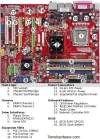
All of these Parts are usually already assembled onto the board so theres no worry that you will have to build it yourself!
We are only interested in slots 1 ( Where The CPU Goes ), 4 & 5 ( Slots For The RAM ) and Slot 10 ( For your Video / Graphics ).
Graphics Cards
If you want to game or watch Blu Ray movies in 1080p then your going to want a Graphics Card. These can fit into Slot 10. Most motherboards also come with on-board graphics but these are nowhere near as good as having Dedicated Graphics.
CPU ( The Most Important 😛 )
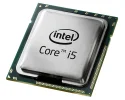
This is the most important part of a PC. Its known as the Central Processing Unit ( CPU ). The CPU processes data and the faster the CPU Can run, the faster your PC. The CPU is the most delicate peice of equipment. Handle it only when moving from the Box to the MB.
RAM
RAM Is a Short Term storage facility and the CPU Stores data there for a Short while until it is needed again. So the more RAM, The faster your PC Will be.
If you are going to have a 32bit OS Then you will need No More than 4GB Of RAM ( 32Bit systems can only notice 3.5GB so having anymore is useless )
64 Bit OS's usually have around 8GB Installed and its maximum is alot more than the 32bit.
If you are going to be Gaming And Rendering etc then you need At least 4GB Of RAM ( And A 64Bit System ) but recommended to have 8GB!
You also need to make sure that your RAM is compatible with your Motherboard. For example, your RAM Can be DDR2 Or DDR3. These must also be the same as your motherboard as you cannot put a DDR2 Stick of RAM Into a DDR3 MB.
PSU ( Power Supply Unit )
So, If your going to be using a high powered graphics card etc. for gaming and rendering then you are going to need a PSU Of a high wattage. I would recommend that you spend a little bit of money on this because this is the main PSU after all. I would recommend that you purchase a 600w PSU. For anybody who just wants to Surf the Internet and check there Emails etc. then i wouldn't recommend any more than a 350w.
HDD And SSD
HDD And SSD's both hold memory but one is faster than the other And with this extra speed, it comes at a extra cost. HDD's are cheaper and you can get a 500gb WB HDD For the price of a 120gb SSD. But, if you want a certain game or OS to run at amazing speed then i would recommend using a SSD But if cost is on the agenda then i would recommend just a normal HDD.
Thats it for the Components.
Building A PC ( Putting It Together )
If you havn't yet read my 1st Tutorial on Choosing Components then Click Here to go and read it!
This Guide is not designed for somebody who has no idea about how a PC Works. It is designed for somebody with a little bit of knowledge about it all. Building a PC can and can't be a walk in the park.
WARNING - Before touching or handling any Components, Always Ground yourself out by Touching your Case.
Step one - Find a Solid Work Table with plenty of space for moving the Case around and having room to work. Make sure this Table is not in a room with carpet floor.
Step two - Remove your case from its box and place it on the table. Ground yourself to it.
This isn't really a step but just helps when your adding stuff later - Place in your PSU Now into either the bottom or top ( Depends which case you have. And screw it down.
Step three - Take out your motherboard from its box and Anti-Static bag. Then place the Board on top of the box and NOT On the Anti-Static bag, It actually produces static electricity on the outside.
Step four - Remove the CPU and Fan from its box. Move up the Latch from the MB And remove the Cover that is over the pins. Be VERY Careful at this point. Now place the CPU Onto the Board ( Slot 1 ) with the Notches the right way. It can only go in one way and not pressure should be applied to it.
Step five - Line up the fan with the the Four Holes at the corners of the CPU Holder. Then click in the opposite corners! Leave the wiring inside the fan until we wire it up.
Step six - Now we have the CPU and Fan Installed. Now its time for the RAM. Grab your RAM Sticks and place them into Slots 4 and 5. Now your RAM Is installed!
Step seven - Now put your motherboard into the Case. This differs with different MB's and cases. Then screw it in. Be careful not to ground it to the Case as then you will have a 230v killing machine.
Step eight - Now lets do the Graphics card. Take this out the box and remove two of the Back panels of the case ( Look in Video 2 ) And then slide it into the MB. Now its installed!
Step Nine - Now take out your HDD Or SSD. Then slide it into one of the 3.5inch HDD Bays. On the side of the case there will be 2 Holes for screws. Screw them in 😛 .
Step ten - If you chose a DVD Drive then slide this into the bay by removing the front of the Case and sliding it in that way.
Wiring:
Well, I learnt how to do all of this by a very good series of Tutorials over on Youtube. These may be better because they provide a Visual. Check them out! Part 3 contains the Wiring! Duncan33303 Is very good!
http://www.youtube.com/watch?v=tPHCBWayEsY&list=UUXGgrKt94gR6lmN4aN3mYTg&index=1&feature=plcp
http://www.youtube.com/watch?v=ikeHHvGiAZU&feature=relmfu
http://www.youtube.com/watch?v=R6GmIuCAtXA&feature=relmfu
I Made This For My Forums! You Should Check It Our Below!
So, You want to build a PC? Well, in these couple of threads im going to go through what you need in order to do this!
The first thing you need to do is to decide what you want to do on the PC Itself. If all you want to do is check your Emails and Talk to your friends on Facebook then i would recommend that you don't build a PC. Not only would you be wasting your time, but you don't need any good specs like gamers do.
You must have some knowledge of PC's and how they work otherwise i would reccomend that you go and check some books or sites first as Build A PC Isn't just for any random person.
If you want to be Gaming on it then carry on reading! Building a PC Is the best option to get the Best components at the Best prices you can get them at!
So, If you don't know anything about building a PC Then i would recommend you watch some Videos in which i will add to the 2nd Thread.
In this thread i will go through what you will need to Build your PC ( Components )
Necessary Components:
A Case ( sometimes called a chassis )
A Motherboard
A Processor ( CPU )
RAM ( Random Access Memory )
A Power Supply Unit ( PSU )
A Hard Drive ( sometimes referred to as a Hard Disk Drive - HDD )
A DVD CDROM Drive
A Keyboard
A Mouse
A Monitor
An Operating System ( Goto the OS Section and ask for other members help on what OS You should choose 🙂 )
And, For Gaming you need a Graphics Card! ( Without it you can only game on Low settings and with Low FPS )
Choosing A Case!
When choosing a Case you want to make sure that the case has enough Air Flow. You don't want to be Gaming and have a Slow PC, At the End of the day, it is a Gaming PC!
I would recommend a Bigger case whereas some people prefer small cases. Beware that you will need more fans in a smaller case and you may not be able to have some Graphics cards because of the fact that they can't fit. If you have a Bigger case you have the following - Better Airflow ( Less Overheating ), More Room For A Graphics Cards, More Room For Your Hands!
Motherboard
The Motherboard is the most complex piece of electronics in the PC. It connects and communicates with all of the major components inside the case.
The CPU ( I will discuss this later ) must be compatible with the Motherboard!
A Typical Motherboard:
All of these Parts are usually already assembled onto the board so theres no worry that you will have to build it yourself!
We are only interested in slots 1 ( Where The CPU Goes ), 4 & 5 ( Slots For The RAM ) and Slot 10 ( For your Video / Graphics ).
Graphics Cards
If you want to game or watch Blu Ray movies in 1080p then your going to want a Graphics Card. These can fit into Slot 10. Most motherboards also come with on-board graphics but these are nowhere near as good as having Dedicated Graphics.
CPU ( The Most Important 😛 )
This is the most important part of a PC. Its known as the Central Processing Unit ( CPU ). The CPU processes data and the faster the CPU Can run, the faster your PC. The CPU is the most delicate peice of equipment. Handle it only when moving from the Box to the MB.
RAM
RAM Is a Short Term storage facility and the CPU Stores data there for a Short while until it is needed again. So the more RAM, The faster your PC Will be.
If you are going to have a 32bit OS Then you will need No More than 4GB Of RAM ( 32Bit systems can only notice 3.5GB so having anymore is useless )
64 Bit OS's usually have around 8GB Installed and its maximum is alot more than the 32bit.
If you are going to be Gaming And Rendering etc then you need At least 4GB Of RAM ( And A 64Bit System ) but recommended to have 8GB!
You also need to make sure that your RAM is compatible with your Motherboard. For example, your RAM Can be DDR2 Or DDR3. These must also be the same as your motherboard as you cannot put a DDR2 Stick of RAM Into a DDR3 MB.
PSU ( Power Supply Unit )
So, If your going to be using a high powered graphics card etc. for gaming and rendering then you are going to need a PSU Of a high wattage. I would recommend that you spend a little bit of money on this because this is the main PSU after all. I would recommend that you purchase a 600w PSU. For anybody who just wants to Surf the Internet and check there Emails etc. then i wouldn't recommend any more than a 350w.
HDD And SSD
HDD And SSD's both hold memory but one is faster than the other And with this extra speed, it comes at a extra cost. HDD's are cheaper and you can get a 500gb WB HDD For the price of a 120gb SSD. But, if you want a certain game or OS to run at amazing speed then i would recommend using a SSD But if cost is on the agenda then i would recommend just a normal HDD.
Thats it for the Components.
Building A PC ( Putting It Together )
If you havn't yet read my 1st Tutorial on Choosing Components then Click Here to go and read it!
This Guide is not designed for somebody who has no idea about how a PC Works. It is designed for somebody with a little bit of knowledge about it all. Building a PC can and can't be a walk in the park.
WARNING - Before touching or handling any Components, Always Ground yourself out by Touching your Case.
Step one - Find a Solid Work Table with plenty of space for moving the Case around and having room to work. Make sure this Table is not in a room with carpet floor.
Step two - Remove your case from its box and place it on the table. Ground yourself to it.
This isn't really a step but just helps when your adding stuff later - Place in your PSU Now into either the bottom or top ( Depends which case you have. And screw it down.
Step three - Take out your motherboard from its box and Anti-Static bag. Then place the Board on top of the box and NOT On the Anti-Static bag, It actually produces static electricity on the outside.
Step four - Remove the CPU and Fan from its box. Move up the Latch from the MB And remove the Cover that is over the pins. Be VERY Careful at this point. Now place the CPU Onto the Board ( Slot 1 ) with the Notches the right way. It can only go in one way and not pressure should be applied to it.
Step five - Line up the fan with the the Four Holes at the corners of the CPU Holder. Then click in the opposite corners! Leave the wiring inside the fan until we wire it up.
Step six - Now we have the CPU and Fan Installed. Now its time for the RAM. Grab your RAM Sticks and place them into Slots 4 and 5. Now your RAM Is installed!
Step seven - Now put your motherboard into the Case. This differs with different MB's and cases. Then screw it in. Be careful not to ground it to the Case as then you will have a 230v killing machine.
Step eight - Now lets do the Graphics card. Take this out the box and remove two of the Back panels of the case ( Look in Video 2 ) And then slide it into the MB. Now its installed!
Step Nine - Now take out your HDD Or SSD. Then slide it into one of the 3.5inch HDD Bays. On the side of the case there will be 2 Holes for screws. Screw them in 😛 .
Step ten - If you chose a DVD Drive then slide this into the bay by removing the front of the Case and sliding it in that way.
Wiring:
Well, I learnt how to do all of this by a very good series of Tutorials over on Youtube. These may be better because they provide a Visual. Check them out! Part 3 contains the Wiring! Duncan33303 Is very good!
http://www.youtube.com/watch?v=tPHCBWayEsY&list=UUXGgrKt94gR6lmN4aN3mYTg&index=1&feature=plcp
http://www.youtube.com/watch?v=ikeHHvGiAZU&feature=relmfu
http://www.youtube.com/watch?v=R6GmIuCAtXA&feature=relmfu
I Made This For My Forums! You Should Check It Our Below!


