


If you have an iPod, iPhone or an iPad, I guarantee that you have plugged your device into your computer. Well, everytime I do, I get an AutoPlay popup that lists all of the options I have to do with the device. Well, I don't want Windows to do nothing because that's why I have iTunes! So, here is how to stop those annoying popups.
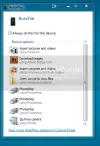
1) Start > Control Panel
2) Choose Hardware and Sound
Note: make sure the view is "Category"
3) Select AutoPlay
4) Under Devices, Find your device you want to turn off AutoPlay for, and in the drop down menu, choose Take no action
5) Click on Save, and exit the control panel
There ya go! You have now stopped those popups for your device!
Follow this to stop these!
1) Start > Control Panel
2) Choose Hardware and Sound
Note: make sure the view is "Category"
3) Select AutoPlay
4) Under Devices, Find your device you want to turn off AutoPlay for, and in the drop down menu, choose Take no action
5) Click on Save, and exit the control panel
There ya go! You have now stopped those popups for your device!


