make an image look lighter using paint

topthisfact

Paragon
Joined
Dec 14, 2009
Messages
2,244
Reaction score
0
FP$
636
Hello,
I want to make an image look whiter/lighter using paint. Please message me on pm for more information about this. I can pay FP CASH for this tutorial.
 
I don't think you can do it with Paint. I am not familiar with the newest Windows 7 paint, but unless it has a color transparency option or opacity option, you are out of luck. I would Google "GIMP", it is the best free design software you can get closest to Photoshop.

😕
 
If you just want to make it look whiter then paint over it with a normal white paint brush that you have lowered the opacity on.
 
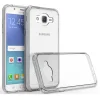
For example, this is an image that i want all my other images to look like.
You see the bottom part where it is reversed with lighter color, i want to do something like that.
G155-2.webp
 
You can try it with Microsoft Word... I think there is an option to insert an image as background, and it automatically adds that lighter shade, then after you insert it in the document, just print screen it and save it again. This will give you a light image in a white background.

I hope that is of help, f it isn't then you will most likely need to download gimp or use some online tool.
 
Use pixlr.com, pretty easy to use app. All you have to do is copy the image, flip it, lower opacity, crop the bottom and then add the original image to the top. I don't think you can use paint, because paint blows chunks anyway.
 
We could get REALLY technical here and edit the image on NotePad++, with a Hex editor.

But like most above, simply "Paint" or MS Paint won't cut it. You will require a graphics editor of higher order.
 
I do have photoshop, is there an tutorial for photoshop? for making the lighter reflection as shown on the image.
 
Back
Top Bottom