

Before we start may I please ask you not to copy/paste any of the content below... this tutorial is written FULLY by me... and so are all the images. Thank you in advance
Alright Gimp is a free photoshop... with er "similar capabilities"... it's a gr8 way for users who do not want to spend money to start their journey into the ever so wondrous realm of graphic design!
(Note Photoshop doesn't cost money for nothing... I just use gimp cause it's free :lol: )
The following tuts can also apply to photoshop (I think) since it's a more wide spread photo editing/authoring program....
Anyways let's start!
This is awesome!
I just luv the shine effect! You can use it on even text! and the best part is it's extremely easy! and can be achieved in 3-4 easy steps!
Creat the text/shape u want the shine around
This can be from text, shapes, or even lines!
DO NOT USE BLACK and or any of it's shades...
well u can but it just doesn't look good... you can test it out yourself and see what colors look good 😀.. I like blue... so I'm gonna go with that:
Shape:

Text:

Line:

Duplicate the layer...
Right click on the layer and select "Duplicate layer"
Go to the duplicated layer (make sure it's under the original layer)... Then go to filter-> Blur-> Gaussian Blur and set the horizontal and vertical to 10 (or above depending on the amount of shine you want... I wouldn't go too high)
And there you have it!
Note: Lighter colors get more light:
Result:



Have fun with that!
Cool tip: to get really bright light on a shape... select your shape... then create a new layer and stroke the selection... (selection-> stroke selection OR Seletion-> To path... then go to the paths tool and Stroke path) Stroke the selection/path with white.... and do the above steps to get a shiny line around the shape...
Pretty straight forward, although varies between shapes... We're gonna only discuss the rectangle and the circle..
Create the shape and add a gradient to it...
Put the light color facing up, and the dark color facing down (try not to use light colors or the effect will not show up properly)
Try to keep the colors close... so for example don't go from red to green...
Again I'm chosing blue 🙂
Rectangle:


IMPORTANT: Do not lose the selection around the shape!!!
Add a new layer above the current one and chose your FG color as white... then again go to the gradient tool and select "FG to Transparent" as your gradient... fill the already selected path with that gradient with the white at the top....
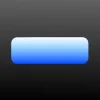

Select the scaling tool and go to the white gradient layer we made... scale the layer to a proper size in proportion with the colored layer below that...
For the rectangle scale ONLY the hight- keep it to half
For the circle have to shrunk down to a smaller circle and position somewhere at the top as displayed below:
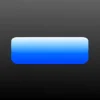

Set the opacity of the white gradient layer to your preference to make the gloss look more glossy
hmmmmm... 60-70 opacity shud do the trick! :great:
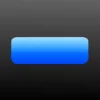
I'm gonna leave the circle the way it is.... looks good enough already
and there you have it!
Macintosh like backgrounds!
Cool and smooth... might look a little complicated... but it's very easy!
all u need is imagination, creativity and pinch of pixie dust... (lame pun :lol: )
anyways here it is!
Fill your canvas with a gradient
.... again use close colors...

Use your paths tool to create a large wavy shape
such as so... make sure it looks nice on the canvas!
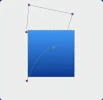
Go to select-> from path... this shud transform your path into a selection!
Go to Gradients and select FG to transparent
You then change your fg color to white... and give the selection a gradient to whichever direction you want! adjust the opacity of the layer to about 45 and you're ready to go!

Cool tip: You can repeat the steps to create more wavy shapes on the same canvas!
And using the above tuts and a little imagination you can make some gr8 stuff!
And to think it only takes 3 steps...
Here's what I came up with 🙂
I'm sure you can do better!
Try it out!

Alright Gimp is a free photoshop... with er "similar capabilities"... it's a gr8 way for users who do not want to spend money to start their journey into the ever so wondrous realm of graphic design!
(Note Photoshop doesn't cost money for nothing... I just use gimp cause it's free :lol: )
The following tuts can also apply to photoshop (I think) since it's a more wide spread photo editing/authoring program....
Anyways let's start!
____________________________________________________________
Number 1- The Shine effect!
This is awesome!
I just luv the shine effect! You can use it on even text! and the best part is it's extremely easy! and can be achieved in 3-4 easy steps!
Step 1:
Creat the text/shape u want the shine around
This can be from text, shapes, or even lines!
DO NOT USE BLACK and or any of it's shades...
well u can but it just doesn't look good... you can test it out yourself and see what colors look good 😀.. I like blue... so I'm gonna go with that:
Shape:
Text:
Line:
Step 2
Duplicate the layer...
Right click on the layer and select "Duplicate layer"
Step 3
Go to the duplicated layer (make sure it's under the original layer)... Then go to filter-> Blur-> Gaussian Blur and set the horizontal and vertical to 10 (or above depending on the amount of shine you want... I wouldn't go too high)
And there you have it!
Note: Lighter colors get more light:
Result:
Have fun with that!
Cool tip: to get really bright light on a shape... select your shape... then create a new layer and stroke the selection... (selection-> stroke selection OR Seletion-> To path... then go to the paths tool and Stroke path) Stroke the selection/path with white.... and do the above steps to get a shiny line around the shape...
____________________________________________________________
Number 2- The Gloss effect!
Pretty straight forward, although varies between shapes... We're gonna only discuss the rectangle and the circle..
Step 1
Create the shape and add a gradient to it...
Put the light color facing up, and the dark color facing down (try not to use light colors or the effect will not show up properly)
Try to keep the colors close... so for example don't go from red to green...
Again I'm chosing blue 🙂
Rectangle:
IMPORTANT: Do not lose the selection around the shape!!!
Step 2
Add a new layer above the current one and chose your FG color as white... then again go to the gradient tool and select "FG to Transparent" as your gradient... fill the already selected path with that gradient with the white at the top....
Step 3
Select the scaling tool and go to the white gradient layer we made... scale the layer to a proper size in proportion with the colored layer below that...
For the rectangle scale ONLY the hight- keep it to half
For the circle have to shrunk down to a smaller circle and position somewhere at the top as displayed below:
Step 4
Set the opacity of the white gradient layer to your preference to make the gloss look more glossy
hmmmmm... 60-70 opacity shud do the trick! :great:
I'm gonna leave the circle the way it is.... looks good enough already
and there you have it!
____________________________________________________________
Number 3- The Mac-grounds
Macintosh like backgrounds!
Cool and smooth... might look a little complicated... but it's very easy!
all u need is imagination, creativity and pinch of pixie dust...
(lame pun :lol: )anyways here it is!
Step 1:
Fill your canvas with a gradient
.... again use close colors...
Step 2:
Use your paths tool to create a large wavy shape
such as so... make sure it looks nice on the canvas!
Step 3:
Go to select-> from path... this shud transform your path into a selection!
Step 4:
Go to Gradients and select FG to transparent
You then change your fg color to white... and give the selection a gradient to whichever direction you want! adjust the opacity of the layer to about 45 and you're ready to go!
Cool tip: You can repeat the steps to create more wavy shapes on the same canvas!
____________________________________________________________
And using the above tuts and a little imagination you can make some gr8 stuff!
And to think it only takes 3 steps...
Here's what I came up with 🙂
I'm sure you can do better!
Try it out!


